


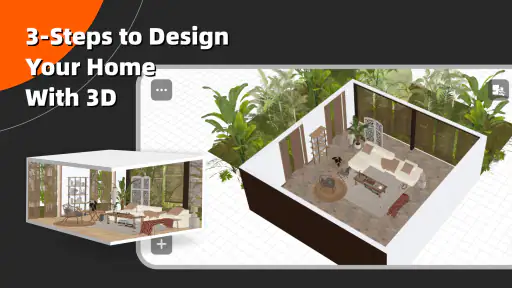
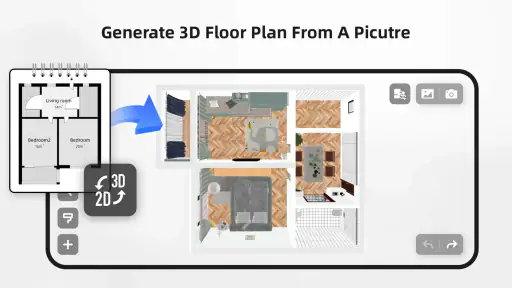
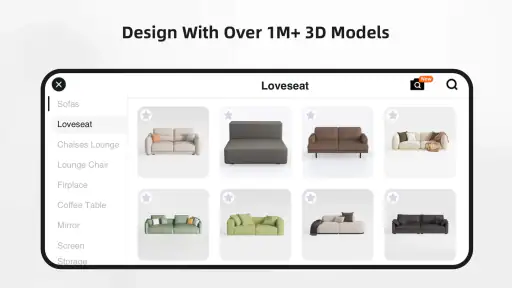
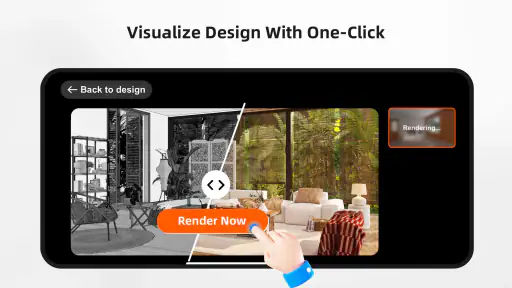

Planning a room on a phone sounds simple until a sofa refuses to sit against a wall, a floor plan looks wrong in three dimensions, or a carefully arranged space becomes difficult to edit. That is where Homestyler - Home Design Game becomes interesting. It is a free house and home app from HomestylerApp that lets me experiment with interior layouts and remodeling ideas in a visual way, rather than relying only on imagination or rough sketches.
After spending time with it, I see it as a useful design sandbox rather than a replacement for an architect, contractor, or full desktop design package. Its best quality is that it makes early decisions easier: I can compare furniture arrangements, test a style, and get a more convincing sense of how a room might feel before moving anything in real life. The experience is approachable, but it also has enough friction that a little patience matters.
Where the first setup usually becomes difficult
The first challenge is not necessarily learning the controls. It is deciding what kind of project to create. If I start by browsing attractive furniture without first thinking about the room’s shape, I can quickly build something that looks good on screen but makes little practical sense. A narrow walkway, an oversized table, or a door blocked by a cabinet may not be obvious until I rotate the view.
I get better results by treating the first pass as a rough planning exercise. I establish the room boundaries, place the largest fixed elements, and only then add decorative pieces. This order prevents the common mistake of spending time on cushions, lamps, and colors before discovering that the main furniture arrangement does not work.
The app is suitable for casual experimentation, but it still asks me to think spatially. Moving an object in a three-dimensional scene can feel less precise than moving a shape on paper. Perspective can also make a gap look larger or smaller than it really is. I therefore check the room from several angles instead of trusting one attractive screenshot.
Another point of friction is the difference between browsing and designing. The catalog can encourage endless searching, especially when I am trying to match a particular mood. That is enjoyable when I am collecting ideas, but inefficient when I have a real room to solve. I recommend choosing a small visual direction first—warm, minimal, colorful, traditional, or whatever suits the space—then looking for items that support it.
The average rating is 3.3 from around 91 thousand ratings, while roughly 3 thousand written reviews show that user experiences vary. I think that is a fair warning to approach it as a flexible creative tool, not as an effortless one-tap room generator. It can help me think, but the quality of the result depends heavily on how carefully I build and inspect the scene.
What to check before building a detailed room
I begin with a simple test project before investing time in a complete home. I create a small space, add a few basic objects, switch viewpoints, and confirm that I understand how selection and movement behave. This quick rehearsal answers an important practical question: do I enjoy the way the app handles room planning?
On an older device, I also keep the first scene modest. A crowded project with many objects is harder to edit and may feel less responsive than a simple layout. The minimum operating system is Android 7.0, so compatibility should be checked before downloading, especially on a device that has not received recent updates. The current version is 13.6.0, which makes it sensible to use the latest available build rather than relying on an old installation.
My next check is visual scale. I place one familiar object, such as a bed, dining table, or armchair, and use it as a reference while arranging the rest. Without that anchor, it is easy to make the room feel unrealistically spacious. This is one of the most useful habits I found because it improves the design even when I am only making a concept for myself.
I also decide early whether I am designing an existing room or imagining a completely new one. For an existing room, measurements and obstacles matter more than decoration. I leave space for doors to open, windows to remain usable, and people to pass through. For an imaginary room, I can be more expressive, but I still inspect the layout from the viewpoint of someone who would actually live there.
Because the app is rated for Everyone, it is approachable for family projects and casual creative use. That does not make every project equally easy for children or beginners, though. A young user may enjoy decorating, while an adult planning a renovation needs to double-check every real-world dimension independently. The visual result should guide a conversation, not serve as a construction document.
A workflow that saves time and reduces rework
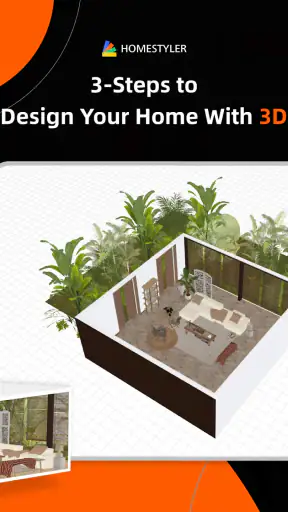
My preferred workflow has four passes. First, I create the shell of the room and identify the functional zones. Second, I place the largest furniture. Third, I refine materials and smaller pieces. Finally, I walk through the scene from different viewpoints and remove anything that feels crowded or impractical.
The important trade-off is between speed and precision. If I decorate immediately, I get a satisfying result quickly, but I often have to undo work later. If I spend too long perfecting the room shell first, the process can feel slow. The four-pass approach keeps the early stage loose while still protecting the final arrangement from obvious mistakes.
I use the app especially well for decisions that are difficult to explain verbally. For example, two people may agree that they want a comfortable living room but picture completely different furniture layouts. A visual scene gives both people something concrete to react to. It is easier to say “the seating blocks the path” when the problem is visible than when it exists only as an idea.
One less obvious use is testing a room for different daily routines. I create one arrangement for watching television, another for entertaining guests, and a third that leaves more open floor space. Comparing those versions exposes whether the design is genuinely flexible or merely attractive from one angle.
I also recommend saving a clean version before experimenting with bold changes. A neutral base makes it easier to compare styles and recover from an arrangement that becomes too busy. This is more useful than repeatedly trying to repair a single overloaded scene, particularly when the project contains many decorative choices.
Recovering when a project stops behaving as expected
When an object appears misplaced, my first response is to change the viewpoint rather than immediately rebuilding the room. Perspective can disguise the actual relationship between an item and a wall. I inspect the scene from above or from the opposite side, then make a small adjustment and check again.
If the layout becomes confusing, I return to the last simple version I understand. I remove recent decorative additions, restore clear walking areas, and rebuild from the major furniture outward. This recovery method is safer than continuing to add objects while hoping the room will eventually look balanced.
For a scene that feels slow or difficult to control, I simplify it. I temporarily work with fewer objects, close other demanding apps, and make sure the device has enough free space for normal operation. These are general mobile troubleshooting steps rather than guarantees, but they are sensible before assuming the design itself is damaged.
If the app behaves strangely after an update or installation, I first restart it and then restart the device. I check that I am using the current version available for my device and avoid repeatedly tapping controls while the scene is still responding. If a project matters, I make a habit of keeping a separate visual record of important stages, such as screenshots of the room from several angles.
That last habit is valuable because creative work is easy to lose through accidental edits. A screenshot is not an editable backup, but it gives me a reference for rebuilding the layout. I would not rely on memory after spending a long time arranging a room.
When the problem is probably outside the app
Not every disappointing result comes from the software. A room can look wrong because the source measurements are wrong, because the phone screen makes distances hard to judge, or because the chosen viewpoint hides a practical problem. Before blaming the app, I compare the virtual arrangement with the real room and check the basic assumptions.
Lighting is another source of confusion. A color that looks calm in a scene may feel different under daylight, warm bulbs, or the lighting already present in the home. I use the app to compare broad color relationships, but I would still test paint, fabric, flooring, or tile samples in the actual room before buying them.
The same caution applies to furniture dimensions. A visually convincing object is not proof that a real product will fit through a doorway, leave enough clearance, or work with existing electrical outlets. Homestyler helps me explore possibilities; it does not remove the need to measure the home and check product specifications separately.
Network or device conditions can also affect the experience. Catalog browsing and visual work may feel less reliable when the connection is unstable or the phone is under heavy load. I usually try a simpler project and a different connection before concluding that a design has failed. If only one scene is problematic, rebuilding a small section can reveal whether the issue is project complexity or a broader device problem.
There is also a human problem: indecision. The app makes it easy to keep changing styles, which can look like a technical issue when the real difficulty is not having a clear brief. I get more useful results when I define a budget range, a room purpose, and a short list of must-have items before opening the catalog.
How it compares with familiar alternatives
Compared with graph paper, this app gives me a much stronger sense of depth and atmosphere. I can understand how furniture relates visually instead of translating every line into a mental three-dimensional model. For early inspiration and conversations with family, that is a meaningful advantage.
Compared with a simple mood-board app, it is better for placement and circulation. A mood board can show colors, textures, and references, but it cannot tell me as clearly whether a sofa and coffee table leave a comfortable route through the room. Homestyler is more useful when the question is “where should this go?” rather than only “what style do I like?”
Professional desktop design tools remain the better choice for technical documentation, exact project coordination, and complex architectural work. They generally demand more learning and may be excessive for someone choosing between two bedroom layouts. I would choose this app for exploration, then move to a more technical solution if the project requires precise drawings or professional collaboration.
It also differs from buying furniture first and arranging it later. The app lets me test a concept before making an expensive commitment. That does not guarantee the selected item will be available or suitable, but it can prevent an obvious mismatch between scale, style, and available space.
Who should use it, and who should skip it
I recommend it to renters planning a refresh, homeowners comparing layouts, students learning basic interior planning, and families trying to agree on a room’s direction. It is also useful for someone who has plenty of ideas but struggles to picture them together. The free entry point makes it easy to explore without committing money immediately.
In-app purchases range from $0.99 to $179.99 per item, so I would pay attention before confirming any optional purchase. The free experience is enough for deciding whether the workflow suits me, but users who want to explore every available option should treat purchases as a possible part of the overall cost rather than assuming every design choice is included.
I would skip it if I need a professional plan for builders, exact construction documentation, or a guaranteed measurement system. I would also skip it if I dislike adjusting objects manually and want a tool that automatically produces a finished room with almost no input. This app rewards experimentation, and that means some trial and error is unavoidable.
It is less suitable for a quick shopping decision when I already know the exact product I want. In that situation, a retailer’s room visualizer or a basic measurement sketch may be faster. Homestyler becomes more valuable when I am comparing several possibilities and need to understand how they interact in the same space.
My practical verdict after using it
HomestylerApp has made home planning more tangible for me. I can move from a vague idea to a room that other people can see and discuss, and that alone can prevent some frustrating real-world decisions. Its strongest role is the middle ground between a paper sketch and a professional design package.
The app has attracted over 10 million installs, which fits its broad appeal, but popularity does not remove the need for a careful workflow. I get the best results when I build from structure to decoration, inspect several viewpoints, keep projects manageable, and verify real measurements outside the app.
My honest recommendation is to download it if you want a visual way to compare room layouts or explore a remodeling style. Start with a small test room, learn the controls, and resist the temptation to decorate before solving movement and scale. Use it as a decision-making companion, not as the final authority on what will fit in your home.
For a free app in the House & Home category, it offers enough creative value to earn a place in my planning toolkit. It is not frictionless, and the optional purchases mean I would stay alert while browsing, but the ability to see alternatives before spending on furniture or materials makes the effort worthwhile. If your goal is to think through a room honestly rather than simply produce a pretty picture, this is where it works best.


